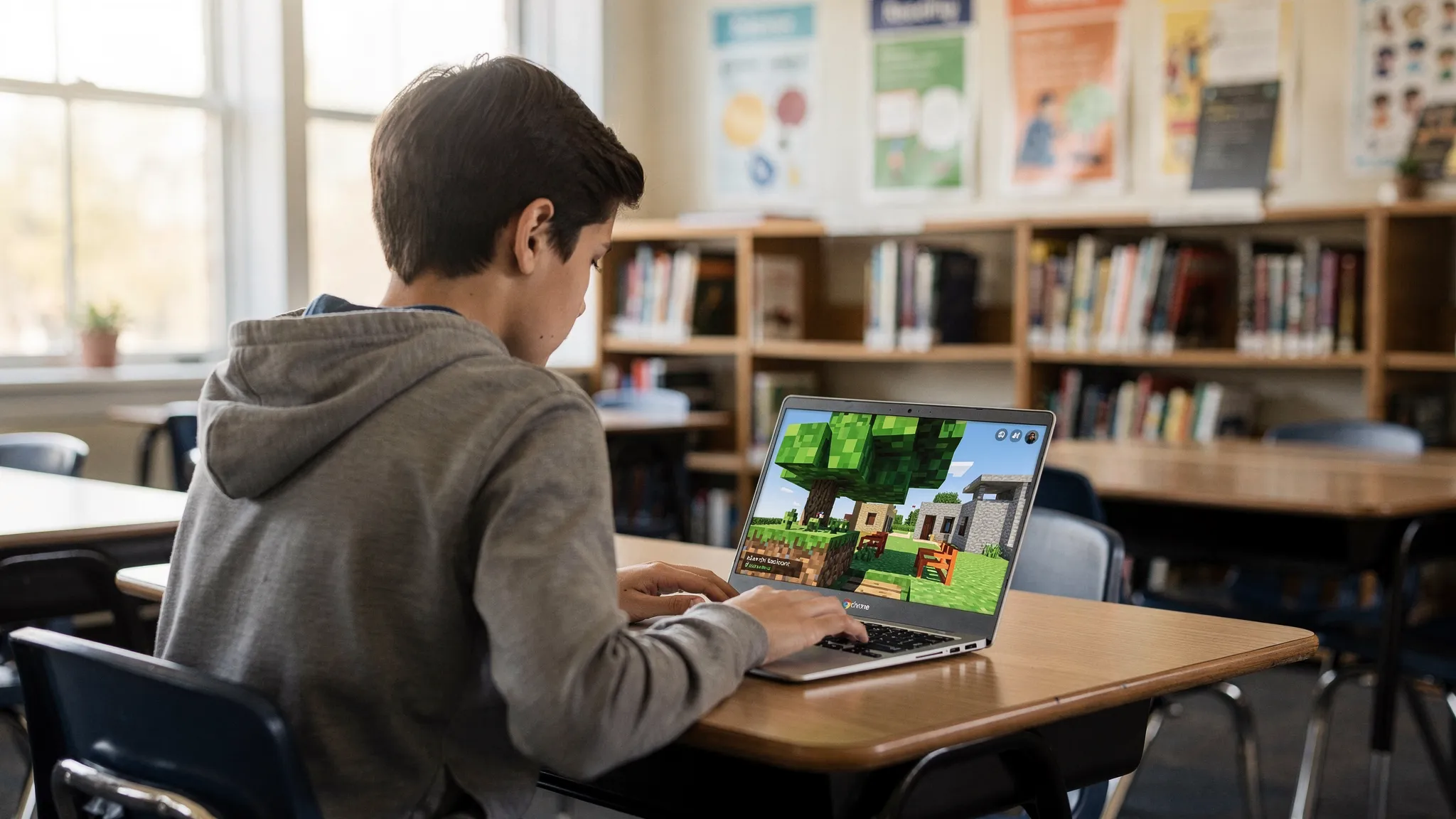
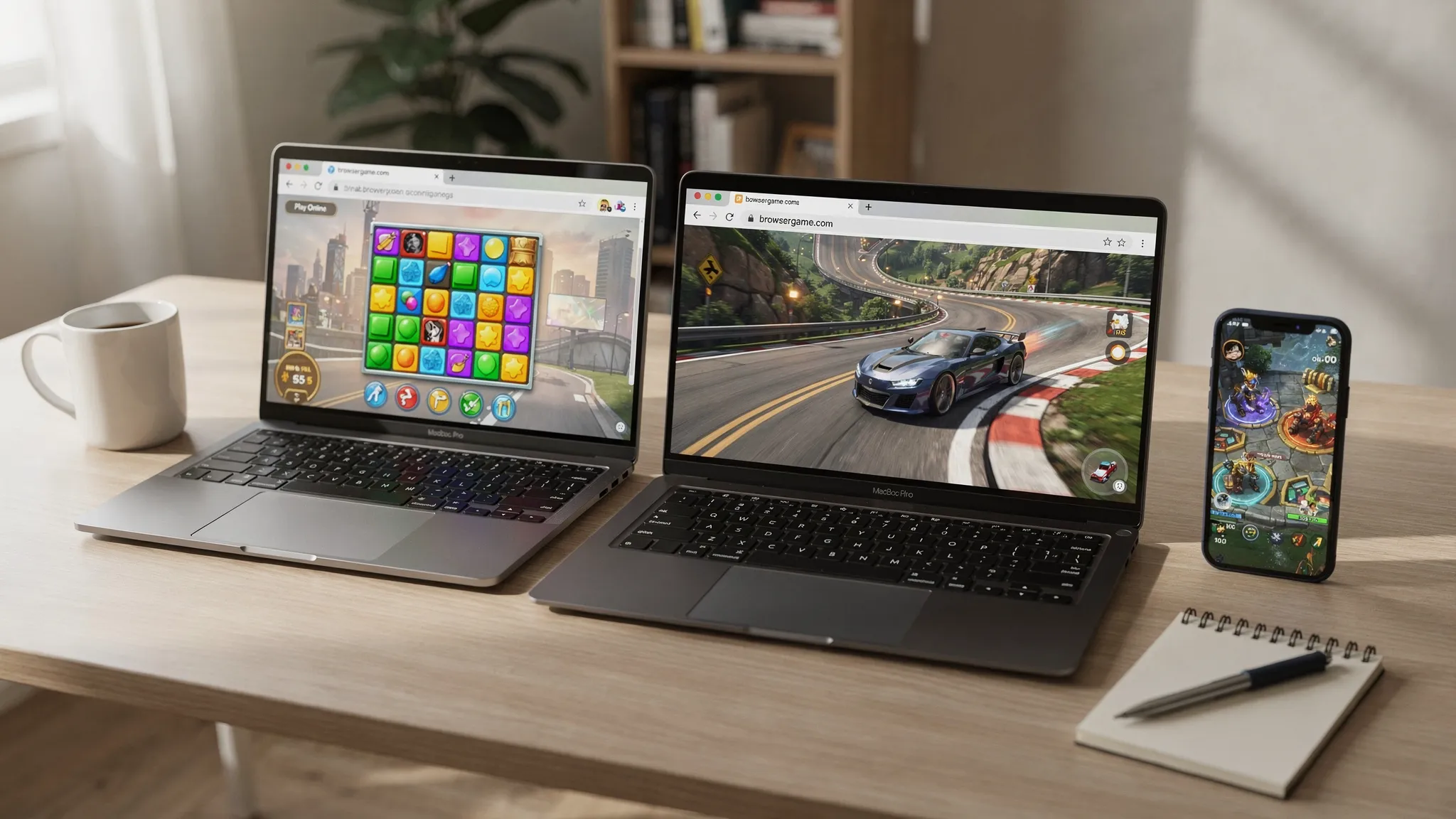
Browser games are having a quiet comeback in 2026 for one simple reason: they are the fastest way to play. Free and unblocked games let you jump into a match, puzzle, or driving run straight from a tab, with no installs, no updates, and no storage headaches.
This starter guide explains what “unblocked” actually means, how to pick safe sites, and how to get the best experience on school Chromebooks, work laptops, phones, or home PCs.
What “unblocked” means (and what it does not)
In most cases, “unblocked” refers to games that still load on networks that restrict gaming sites, like schools, libraries, and some workplaces. Those networks typically use web filters, firewalls, or DNS rules to block certain categories.
A few important clarifications:
- Unblocked does not mean illegal. Plenty of browser games are legitimately free to play and supported by ads or sponsorships.
- Unblocked does not mean “bypass anything.” If a network blocks all gaming traffic broadly, no website can guarantee access.
- Unblocked also does not mean “safe by default.” Some sites use aggressive ads or misleading download prompts. You still need to choose carefully.
- Speed: click and play without installers or account creation.
- Works on most devices: desktops, laptops, Chromebooks, tablets, and phones.
- No storage required: especially helpful on low-space devices.
- Fewer update problems: the game updates on the server side, not your device.
- Lower friction for casual play: perfect for quick breaks or short sessions.
- HTTPS (the lock icon) in the address bar.
- No download prompts (a browser game should not require an .exe or “PC optimizer”).
- No surprise extensions (avoid sites that ask you to “install a video plugin” or add a browser add-on).
- Clear navigation by genre and popularity so you are not hunting through ad pages.
- In Chrome or Edge: Settings, System, enable Use hardware acceleration when available.
- Keyboard games often use WASD or arrow keys, plus Space.
- On mobile, look for touch controls and sensitivity settings.
- Try a different game page or category on the same platform. Filters can be inconsistent.
- Switch networks (home Wi-Fi vs school Wi-Fi) if you are off campus or allowed to.
- Use a different browser (some filtering setups behave differently across browsers).
- Ask IT or an administrator if the site can be reviewed, especially for downtime or study-hall contexts.
- Lower the in-game quality settings if available.
- Close background tabs and apps.
- Restart the browser.
- If on a Chromebook, check if you have many extensions running.
- Refresh once.
- Disable ad blockers for that page (some games break when key scripts are blocked).
- Try another browser.
- Clear the site data for that page (cache/cookies), then reload.
- Use a wired keyboard if possible.
- Turn off Bluetooth devices temporarily.
- Make sure “battery saver” is not throttling performance.
- Do not install anything to play.
- Do not allow notification spam. If you clicked “Allow” by accident, disable notifications in your browser settings.
- Avoid sharing personal info in chat or comments, especially for kids and teens.
- Use age-appropriate content and consider playing in a shared space for younger players.
- Bookmark a few favorites by genre (one puzzle, one action, one racing).
- Keep one “quick win” game for short breaks.
- Rotate occasionally so games stay fun and you avoid burnout.
If you are on a managed network (school or employer), always follow the rules and acceptable-use policy.
Why no-download games are the easiest way to start
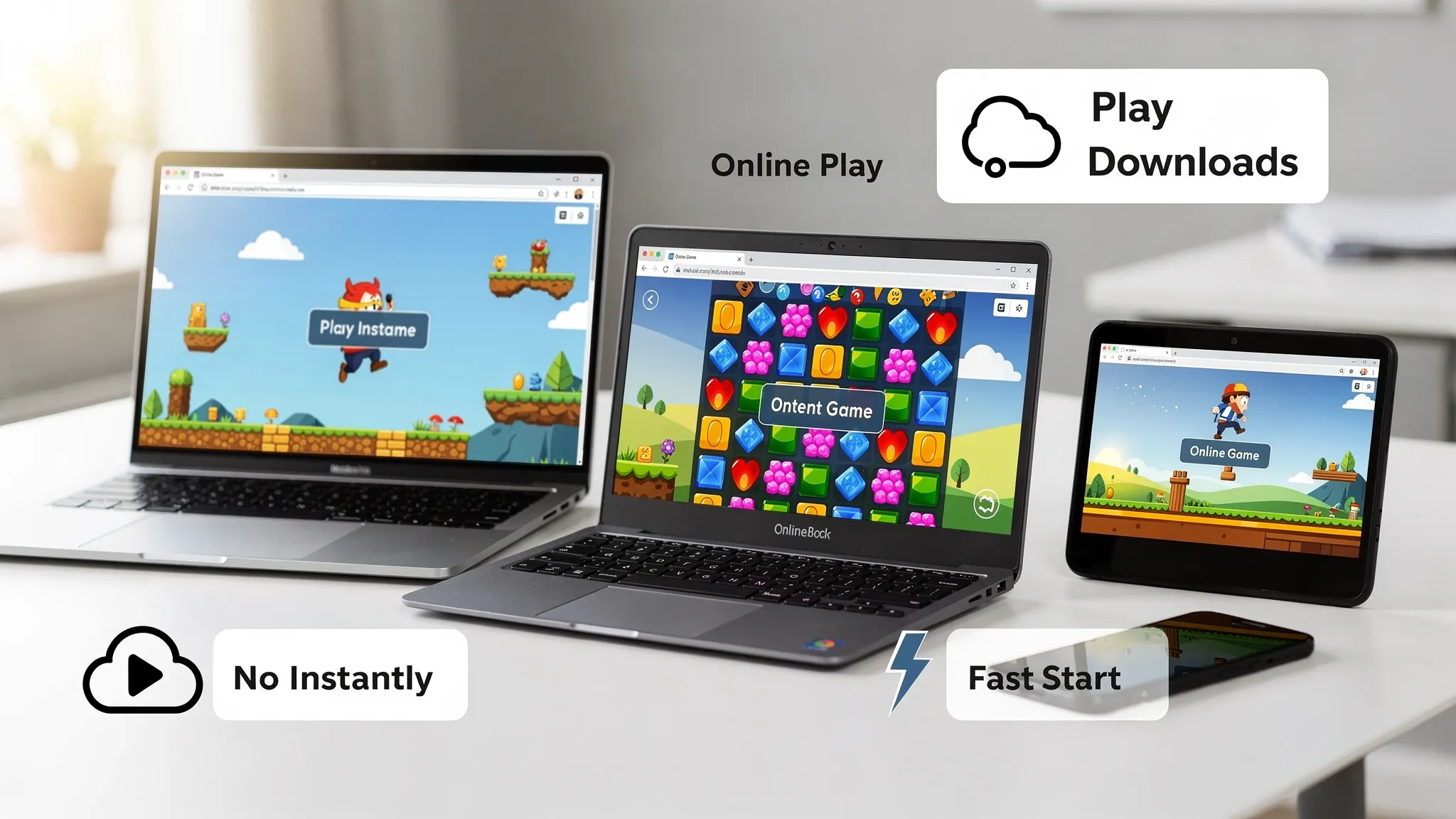
No-download games (also called instant-play or browser-based games) have practical benefits beyond convenience:
For many players, browser games are the simplest “it just works” option.
Where to find free and unblocked games (a safety-first approach)
The safest way to play free browser games is to choose sites that are transparent and don’t push you into risky clicks. In general, look for:
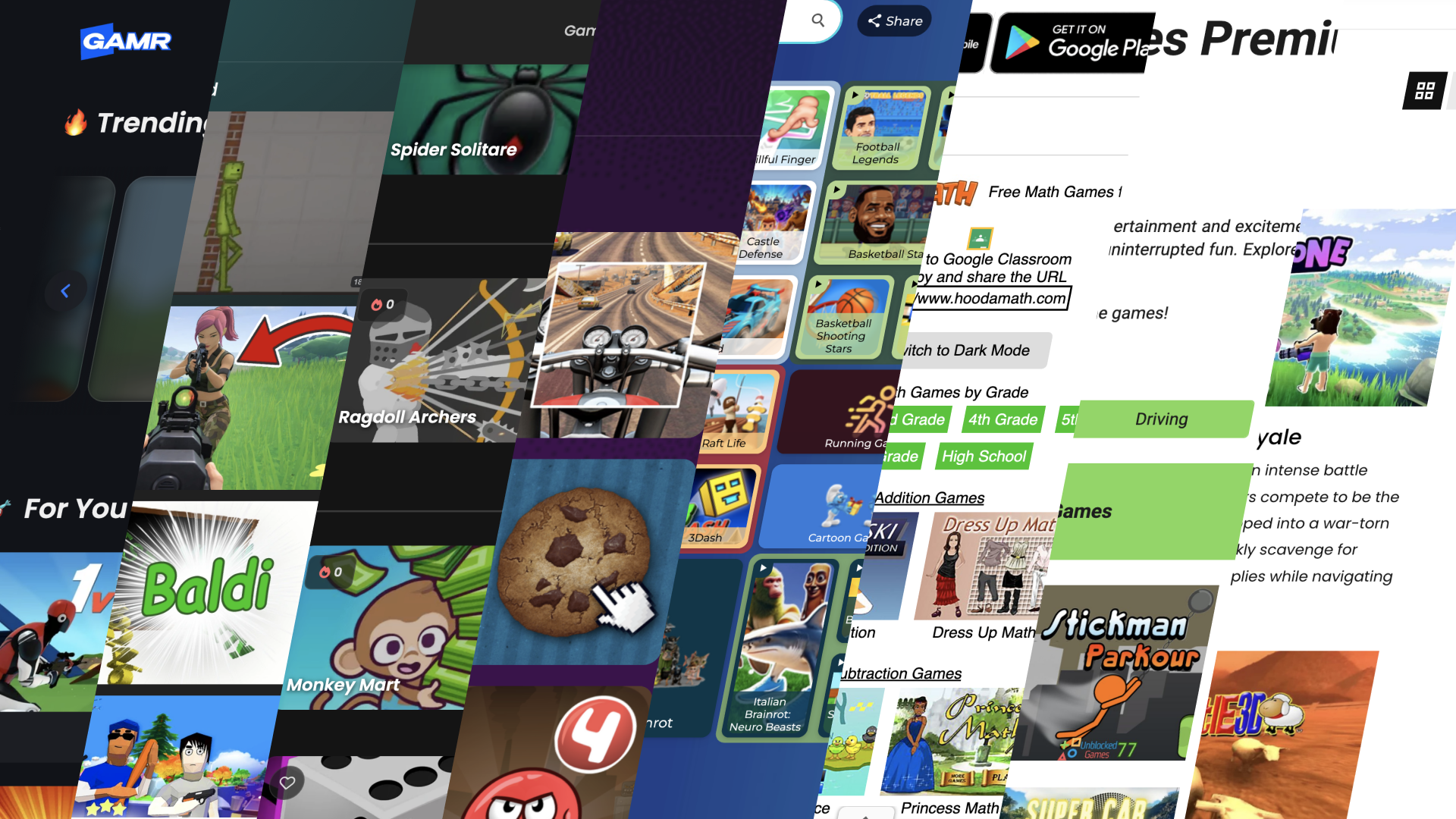
GAMR is built around that instant-play idea: a library of free, unblocked games you can run in your browser on basically any device, with no subscriptions and no downloads. You can browse and play directly at GAMR.
Quick checklist: is a game site likely safe?
Use this simple checklist before you click “Play.”
| Check | What you want to see | What to avoid |
|---|---|---|
| Connection | HTTPS lock icon | “Not secure” warning |
| Installs | Plays in a tab | Any installer or “required download” |
| Permissions | No extra access needed | Requests for notifications, extensions, or admin rights |
| Ads | Reasonable, clearly separated | Fake “Start Download” buttons |
| Popups | Minimal | Multiple new tabs per click |
| Clarity | Game loads and controls are explained | Confusing redirects and countdown pages |
Your 3-minute setup for smooth browser gaming
Most lag and loading issues come from basic browser or device settings. Here is a quick, practical setup that helps on nearly any device.
1) Use a modern browser
Chrome, Edge, Firefox, and Safari generally handle modern web games well. If one browser stutters, try another (this alone fixes a surprising number of issues).
2) Turn on hardware acceleration (if available)
Many browser games use WebGL for graphics. Hardware acceleration lets your GPU help.
If it is already on and you see glitches, try turning it off and restarting the browser (some older devices behave better without it).
3) Close heavy tabs
Streaming video, lots of tabs, and background apps compete for RAM and CPU. Closing them can turn an unplayable game into a smooth one.
4) Use full screen and learn the basic controls
Many games play best in full screen. Also, remember:
Picking a genre: what to try first
If you are new to free browser gaming, start with genres that are easy to learn and fun in short sessions.
| Genre | Why it’s great for beginners | Typical session length |
|---|---|---|
| Puzzle | Low pressure, skill builds fast | 3 to 15 minutes |
| Racing/Driving | Instant action, simple goal | 2 to 10 minutes |
| .io-style arena | Quick matches, easy to restart | 5 to 20 minutes |
| Platformer | Classic controls, clear progression | 5 to 30 minutes |
| Sports | Familiar rules, quick rounds | 5 to 15 minutes |
| Strategy (light) | More thinking, satisfying wins | 10 to 30 minutes |
What to do if a game is blocked at school or work
Sometimes a site is blocked simply due to category filtering, even if the content is harmless. Here are legitimate, policy-friendly steps that do not involve bypassing protections:
If your network blocks gaming by design, respect that. The goal is fun, not getting in trouble.
Troubleshooting: common issues and fast fixes
The game loads but runs slowly
The game shows a black screen
Controls feel delayed (input lag)
Too many ads or misleading buttons
A good rule: never click a button that says “Download” for a browser game. If the site experience feels spammy, switch platforms.
For general guidance on recognizing deceptive design and misleading prompts online, the U.S. FTC’s consumer advice is a useful baseline: FTC consumer guidance.
Staying safe: privacy and security basics for browser games
Free games are often funded by ads, so you should play with the same caution you would use on any ad-supported site.
Focus on these habits:
If you are a parent, it can help to review general online safety guidance for kids and teens from reputable sources like Common Sense Media.
A simple way to build your “go-to” game lineup
Once you find a few games you like, make your setup repeatable:
A well-organized library matters more than people think. It saves time and keeps the experience truly instant.
Frequently Asked Questions
Are free and unblocked games actually free? Many are free to play and supported by ads. If a site demands payment to start playing, read carefully and consider choosing a different game.
Do I need to download anything to play browser games? No. A legitimate no-download browser game should run directly in your browser tab.
Why are games blocked on school Chromebooks? Schools often use web filters to limit distractions and protect students. Blocking can be based on categories, not the specific site quality.
Are unblocked games safe for kids? Some are, but it depends on the game and the site. Look for age-appropriate content, avoid chat features when possible, and supervise younger players.
What browser is best for unblocked games? Chrome and Edge are common on Windows and Chromebooks, Firefox is also strong, and Safari works well on Apple devices. If one browser has issues, try another.
What should I do if a site keeps opening new tabs or popups? Leave the site. Excessive popups are a common sign of a low-quality or risky experience.
Play free and unblocked games instantly on GAMR
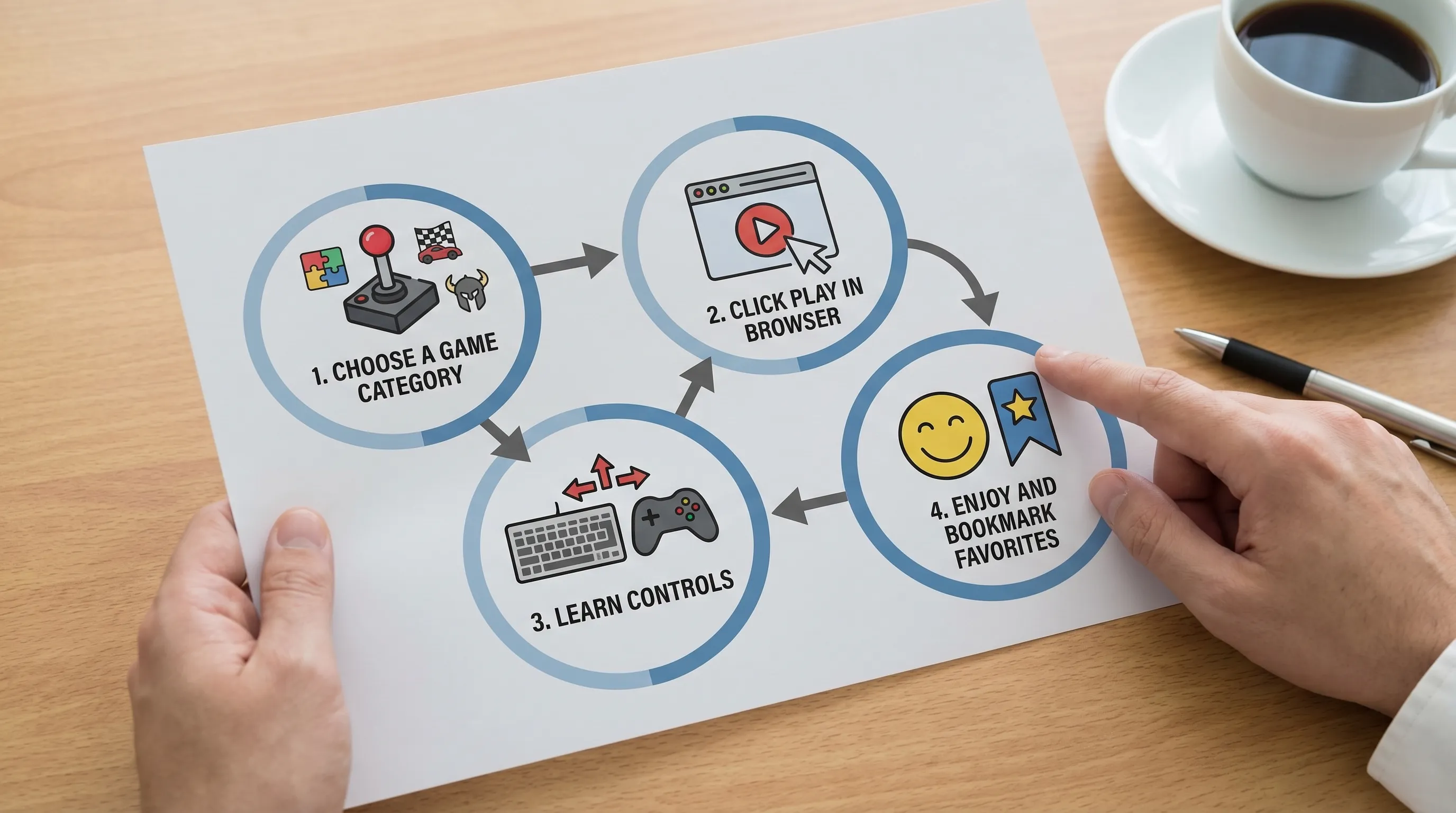
If you want a simple place to start, head to GAMR to explore a regularly updated collection of free, unblocked games that run right in your browser. Pick a genre, click play, and build your own lineup of favorites with zero downloads and zero friction.