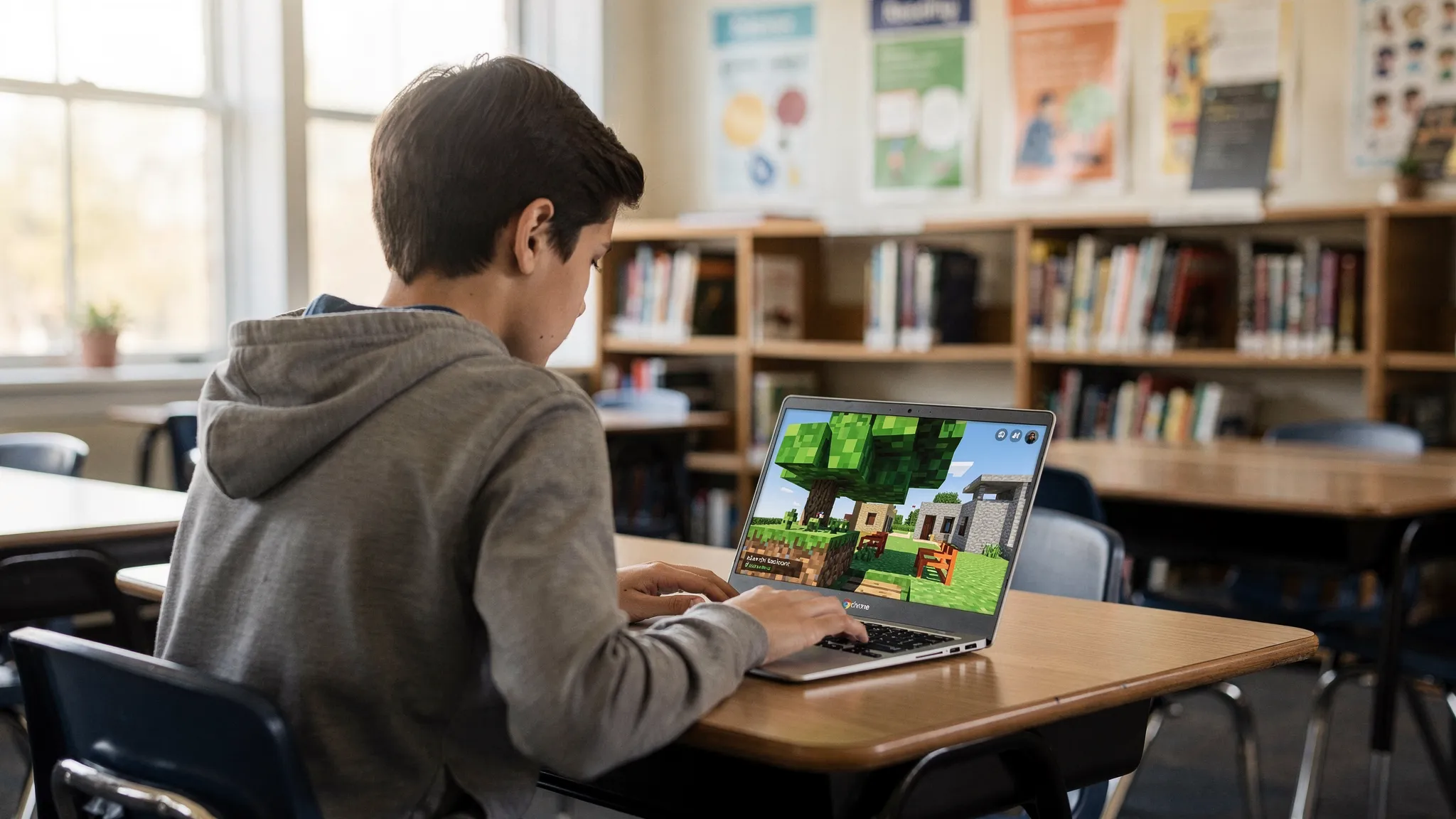
“Unblocked Minecraft” usually means you want a Minecraft-style game that works on restricted school Wi‑Fi and locked-down devices (like Chromebooks), without installing anything. The tricky part is doing it safely and within school rules, because many “workarounds” (VPNs, proxies, bypass sites) can violate policy and put your account or device access at risk.
This guide focuses on no-download, browser-based ways to get that Minecraft fix at school, plus what to do if the game is blocked.
What “unblocked Minecraft” actually means (and why Minecraft is blocked)
Schools commonly filter gaming sites to keep bandwidth stable and students focused. Even if you have free time, the network filter often blocks:- Game portals and ad networks
- WebSocket or multiplayer connections
- File-heavy sites that slow the network
- “New” or unknown domains
- Play Eaglercraft on GAMR
- Official site: Minecraft Education
- Official Minecraft site: Minecraft
- Are games allowed during lunch, study hall, or after-school hours?
- Are you using a school-issued device with an acceptable use policy?
- Would a teacher/admin be okay with a building game during free time?
- Eaglercraft on GAMR
- Close extra tabs (especially video, music, or doc-heavy tabs)
- Turn off battery saver mode if it throttles performance
- If the game has settings, lower visual quality or view distance
- Switch to a more stable connection if available (some schools have separate guest networks)
- Try again later (filters sometimes behave differently during peak hours)
- Ask a teacher if game sites are allowed during free periods
- Use school-approved options (like Minecraft Education) if offered
- Installs require administrator approval
- Unknown downloads can introduce malware
- Local files and executables are often blocked
- Use an allowed educational alternative (ask about Minecraft Education)
- Ask if the site can be approved for free-time use (some schools do whitelist requests)
- Play on your own time, on your own network
- Closing tabs and background apps
- Restarting the browser
- Reducing graphics/settings inside the game (if available)
- Refreshing the page
- Clearing site data for the page (cache/cookies)
- Disabling aggressive extensions (ad/script blockers can break games)
- Trying a different browser if allowed
- Clicking the game window once to “focus” it
- Turning off browser accessibility features that capture keys
- Using an external mouse if permitted
- Do not share personal info in any chat/usernames
- Avoid “bypass” tools (VPN/proxy) unless explicitly allowed
- Stick to free periods and follow teacher instructions
- If asked to stop, stop (not worth losing device privileges)
So “unblocked” does not mean “hacked.” It usually means a web game that is accessible through the school filter and runs in the browser.
The safest way to play Minecraft at school with no download
If you want a Minecraft-like experience with instant play, your best options are:Option A: Play a browser-based Minecraft-style game (no install)
Browser games work well on school devices because they do not require admin permissions or downloads.A popular choice is Eaglercraft, a browser-based Minecraft-like experience where you can build, survive, and craft directly online.
You can play it here:
Because it runs in your browser, it’s a practical “no download” route for many students.
Option B: Use Minecraft Education (if your school supports it)
If your school already provides it, Minecraft Education is the most policy-friendly way to play and learn in a classroom setting.This typically requires a school account/licensing and may involve an app install managed by the school, so it is not always “no download,” but it is the most approved approach.
Option C: Play at home (or on allowed networks) using the official game
If your school blocks everything gaming-related, the simplest answer is often to save the official Minecraft experience for home.How to play unblocked Minecraft at school (no download) using GAMR
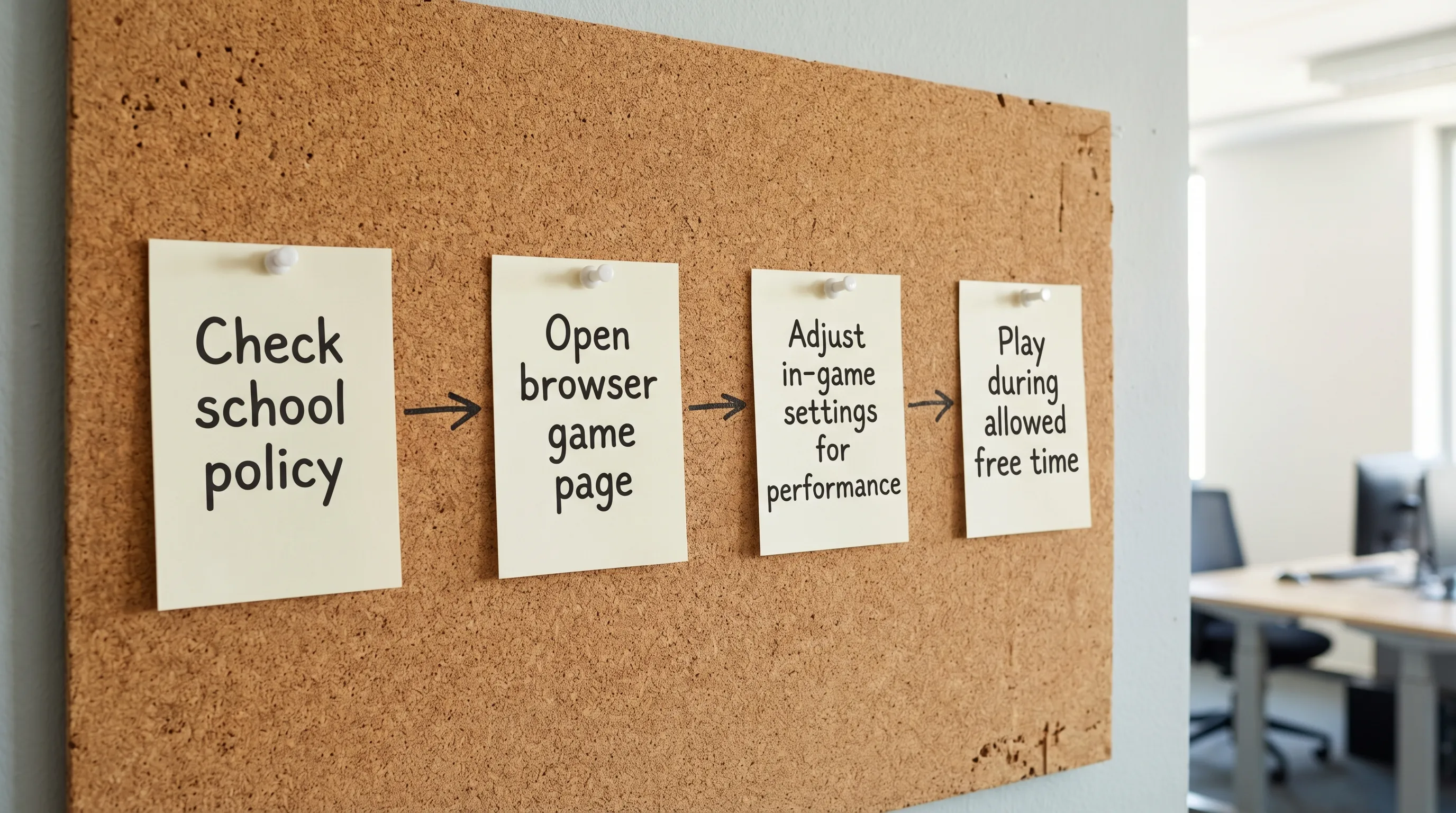
If your goal is to get playing quickly, here’s a straightforward, school-device-friendly approach.1) Check your school rules first (seriously)
Before you try anything, do a quick reality check:If the answer is “no,” don’t gamble your access by trying bypass tools.
2) Open the game in your browser
Use a standard browser (Chrome is common on Chromebooks) and open:Because it’s browser-based, you do not need to install anything.
3) Improve performance on school laptops (quick fixes)
School devices can be underpowered, and school Wi‑Fi can be crowded. If the game feels laggy, these practical tweaks usually help:4) If it’s blocked, don’t jump to VPNs
If the page won’t load, it may be filtered. The safest next steps are:Avoid VPNs or proxy sites on school networks unless you have explicit permission. In many schools, that is treated as bypassing security controls.
Why “no download” matters at school (Chromebooks, permissions, and safety)
Most school devices are locked down for good reasons:Browser games reduce those risks because they run inside the browser sandbox and do not require installing programs. That’s why unblocked Minecraft searches are often really searches for a browser-based Minecraft-like game.
Troubleshooting: when unblocked Minecraft won’t work at school
Here are the most common issues students hit, and what to try next.The page is blocked (filter warning)
That means the domain or category is filtered.Best next steps:
The game loads but is very laggy
Lag at school is usually caused by limited hardware, crowded Wi‑Fi, or background tabs.Try:
Black screen or stuck loading
This can happen if scripts are blocked, caching is corrupted, or the browser is outdated.Try:
Keyboard or mouse controls feel off
School trackpads and browser settings can cause weird input behavior.Try:
Which option should you choose? (Quick comparison)
Here’s a practical comparison based on what most students mean by “unblocked Minecraft.”| Option | Download needed? | Works on school devices? | Best for | Notes |
|---|---|---|---|---|
| Browser-based Minecraft-like game (example: Eaglercraft) | No | Often yes | Quick play during free time | Depends on school filters and device performance |
| Minecraft Education | Sometimes (school-managed) | Yes (if school supports it) | Classroom learning + building | Requires school participation/licensing |
| Official Minecraft (Java/Bedrock) | Yes | Usually no (on locked devices) | Full Minecraft experience | Best saved for home/personal devices |
Staying safe (and not getting in trouble)
If you’re playing at school, treat it like you’re in a library, not at home.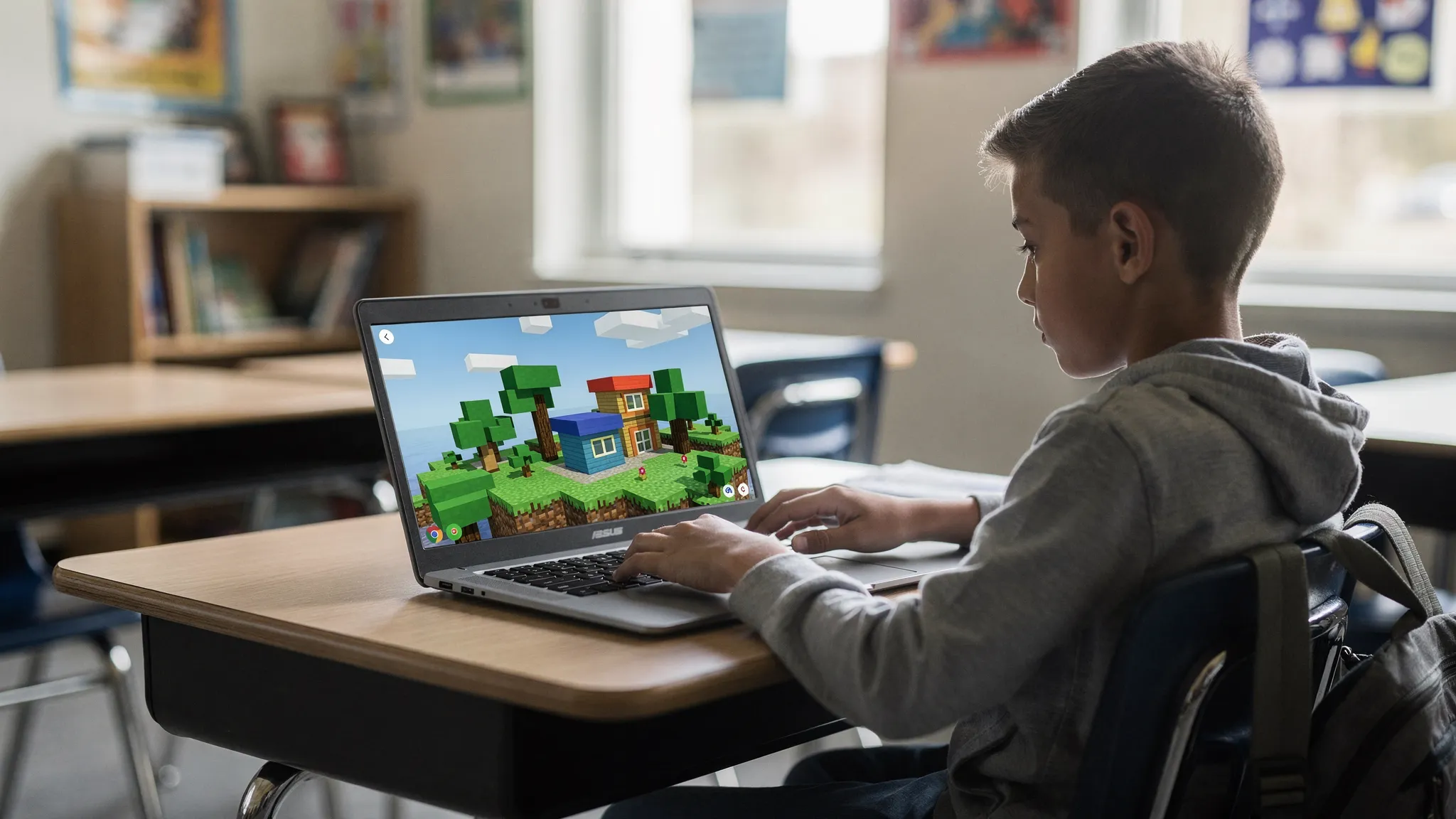
Frequently Asked Questions
Is unblocked Minecraft legal? It depends on what you mean. Playing a browser-based Minecraft-like game is generally fine, but bypassing school security (VPNs/proxies) can violate school policy.
Can I play Minecraft at school without downloading anything? Yes, if you use a browser-based option. For example, you can try Eaglercraft on GAMR, which runs in your browser.
Why is Minecraft blocked on school Wi‑Fi? Schools often block games to reduce distractions, prevent malware, and control bandwidth usage.
Does Eaglercraft work on Chromebooks? Browser-based games often work on Chromebooks because they do not require installing software. Performance depends on the Chromebook model and school network.
What should I do if the site is blocked? The safest move is to ask about approved options (like Minecraft Education) or request access during free time, rather than using bypass tools.
Will playing games at school get my account/device flagged? It can, especially if you use blocked-site workarounds. Staying within school rules and using allowed sites reduces the risk.